
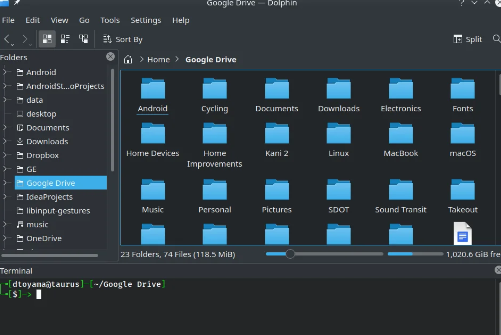
In today’s fast-paced digital world, operating system efficiency is crucial for productivity. Keyboard shortcuts can transform the way users interact with their machines, making tasks quicker and easier. This blog will delve into the differences and advantages of keyboard shortcuts across Windows, macOS, and Linux, highlighting how they can enhance workflow efficiency.
1. Windows Keyboard Shortcuts
Windows is one of the most widely used operating systems, and its keyboard shortcuts are designed to streamline tasks for various applications. For instance, pressing Windows Key + E quickly opens File Explorer, allowing users to access files and folders without additional clicks. Additionally, Alt + Tab enables users to switch between open applications smoothly, enhancing multitasking capabilities.
Another useful shortcut is Control + Shift + Esc, which directly opens the Task Manager, allowing users to manage running applications and system performance efficiently. Many Windows users also benefit from Control + Z for undoing actions, which works across most programs, thus preventing potential mistakes from becoming bigger issues.
-
- Use Windows Key + L to lock your computer quickly.
-
- Remember that Control + C and Control + V are constants for copying and pasting.
-
- Utilize Control + A to select all items in a file or document.
-
- Learn Windows Key + D for showing or hiding the desktop.
-
- Explore additional shortcuts in the Settings menu.
2. macOS Keyboard Shortcuts
macOS is known for its sleek design and innovative user experience, and its keyboard shortcuts are no exception. For example, pressing Command + Space opens Spotlight Search, making it easy to find files, applications, or even perform web searches. Similarly, Command + Tab allows users to switch between applications quickly, maintaining a fluid workflow.
Users also find the Command + Option + Esc combination useful for force-quitting unresponsive applications. Another powerful shortcut is Command + C for copying and Command + V for pasting, which works similarly to Windows but with the Command key instead of Control. Familiarity with these shortcuts can significantly improve efficiency for macOS users.
-
- Practice using Command + N for opening new windows or documents swiftly.
-
- Use Command + W to close tabs or windows quickly.
-
- Use Command + Option + I to open developer tools in browsers.
-
- Learn how to use fn + Delete for deleting items efficiently.
-
- Organize your workflow by utilizing Command + H to hide applications.
3. Linux Keyboard Shortcuts
Linux offers a plethora of customizable keyboard shortcuts, making it incredibly flexible for users to tailor their experience. A common command, Ctrl + Alt + T, opens the terminal, allowing users to navigate the system and execute commands effortlessly. Additionally, switching between workspaces is made easy with Ctrl + Alt + Arrow Keys, facilitating multi-screen setups and project organization.
Linux users can also benefit from shortcuts in the file manager, such as Ctrl + N for creating new folders and Ctrl + P for printing files. Moreover, many distributions allow users to create custom shortcuts, giving them the freedom to optimize their workflow based on individual needs. Learning these commands can greatly enhance productivity and navigation.
-
- Utilize Alt + F2 to run commands quickly.
-
- Remember Ctrl + Shift + N for creating new directories in the file manager.
-
- Check the documentation for your specific Linux distribution to find customized shortcuts.
-
- Consider learning terminal commands for advanced users, as many shortcuts can be executed in the terminal.
-
- Practice switching between windows with Alt + Tab to increase your workflow efficiency.
In conclusion, understanding and utilizing keyboard shortcuts across Windows, macOS, and Linux can substantially enhance your workflow efficiency. Each operating system provides its own set of unique shortcuts that cater to various user needs. Start implementing these shortcuts in your daily routine to see a significant boost in productivity!